
The Clusy Hub
A public gallery of community notebooks and your own portfolio. Browse real work, open it, fork it, and publish your own.
The Clusy Hub is a public gallery of notebooks that people have published from Clusy. Anyone can browse it, no account needed. Open it from the Hub tab in the header (the globe), alongside Home and your Portfolio.
Browsing
The Hub is a grid of notebooks from the community. Each card shows a cover, a title and short description, the author, and how many times the notebook has been viewed and forked.
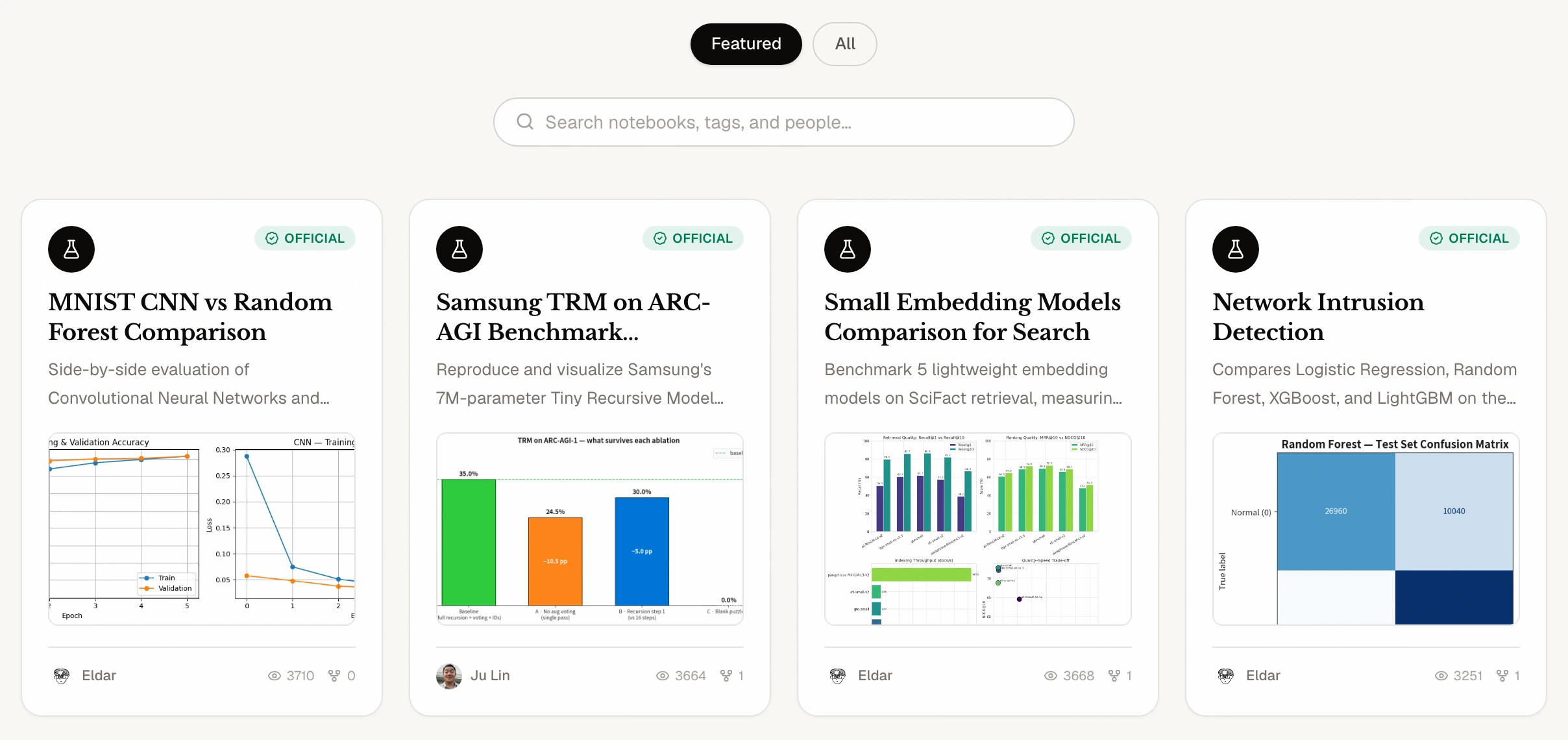 The Hub, captured from the public gallery. Official notebooks use their real saved outputs as covers rather than invented preview charts; gallery contents and counts change over time.
The cover is a real output pulled from the notebook itself, usually its headline chart or image, rather than a stock graphic. When the standout result isn't something that can be shown as a static image, the card falls back to a clean placeholder instead of a made-up one.
A few controls sit across the top:
- Featured shows a curated selection, and All shows everything the community has published.
- Search runs across notebooks, tags, and people.
- Sort orders the gallery by Recent or Popular.
Cards are badged Official for the curated picks, or Lab and Notebook depending on whether the share is a whole branch tree or a single branch.
Opening and forking
Click a card to open the notebook in the read-only share viewer. From there you can read it, download the .ipynb, open it elsewhere, and—when the author enabled forking—copy it into your own workspace after signing in. Click an author's name to visit their portfolio.
Portfolios
Every member has a public portfolio that collects the notebooks they've published. Reach your own from the Portfolio tab in the header.
A portfolio shows your name, a one-line headline, a short bio, and links to your website, GitHub, and LinkedIn, above a grid of your published notebooks. Use Edit profile to set the headline, bio, and links. Your name and picture come from Settings → Profile.
Publishing to the Hub
A notebook reaches the Hub through the share dialog. When you share a notebook, turn on List on the Clusy Hub to add it to the public gallery. You can give it a title, description, and up to eight tags, and Generate with AI can draft those from the notebook for you.
Listing is off by default, so nothing lands on the Hub unless you choose it.
Listing makes a notebook public
Once it is on the Hub, anyone can discover and open the notebook; whether they can fork it follows the share's Fork it permission. To take it down, revoke its share link, which removes it from the gallery.