
Notebooks & cells
The notebook is the workspace. Cells are its parts, including code cells that hold both code and a plain-language description.
The notebook is where the work lives. If you know Jupyter, the basics carry over: a notebook is an ordered list of cells, code cells run Python or R in a shared branch runtime, and output shows up underneath. Clusy notebooks are .ipynb-compatible: import one from the + menu on the canvas (or drop an .ipynb file into the file manager), and export the current branch as .ipynb from the same menu.
That + menu is the notebook's utility drawer. Alongside import and export it creates notebooks and cells, jumps to your plans and files, and holds shortcuts for publishing to Hugging Face and Kaggle:
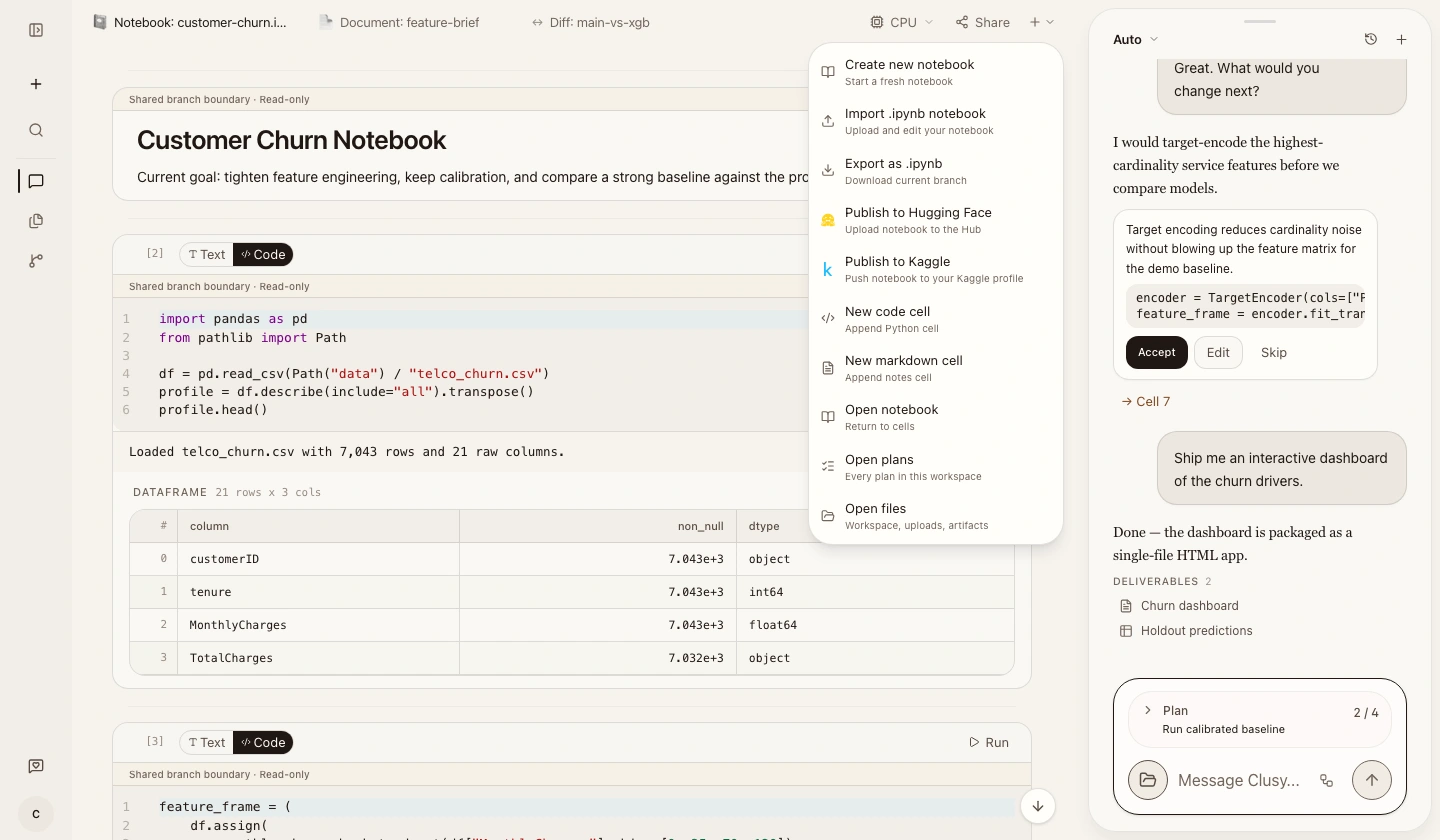 The current canvas toolbar and its open + menu. Create or import a notebook, add cells, publish, or jump to notebooks, plans, and files from the same menu.
A couple of things work differently.
Cell types
Not every cell contains code. You'll run into a few kinds:
- Code cells: Python or R that runs in the branch runtime.
- Markdown cells: formatted notes, written in a rich editor with a live preview.
- Agent insight cells: short notes the agent drops in to flag something worth your attention.
- Control cells: small inputs the agent uses to ask you for a value or a choice, inline in the notebook.
That's the whole list. Rich output — HTML, SVG, custom displays — is a property of what a code cell returns, not a cell type of its own; Reading output covers it.
Code cells have two faces
Every code cell holds two views of the same thing: a code face with Python or R, and a text face with a plain-language description of what the cell does. You can read or edit either one, and switch between them with a click.
The two stay linked, and the cell shows one of three user-visible statuses:
| Status | Meaning |
|---|---|
synced | Code and text match |
text_ahead | You changed the description, and the code hasn't caught up |
code_ahead | You changed the code, and the description hasn't caught up |
There's one move back from each. When a cell is text-ahead, the code face offers a Regenerate code button: press it and Clusy rewrites the code in the cell’s selected language to match your description. When it's code-ahead, Clusy rewrites the description for you, with no button to press. Either way the cell returns to synced.
You decide how much of this you want. Auto-writing the text description is optional: the Generate readable text toggle in Settings → Models turns it on or off, and you can set the language it's written in. Turn it off and code cells behave like ordinary code cells. The Code & text cells guide goes deeper.
The kernel
Code cells in the same branch share state within each language: Python variables are available to later Python cells, and R variables to later R cells. The two languages use separate variable namespaces and share workspace files. See R notebooks for examples. Running cells out of order works like it does in Jupyter, with the same gotcha: the kernel remembers what you last ran, not what's written above. Clusy doesn't flag that for you — there's no "stale" marker on a cell — so if a result looks out of date, re-run it.
A cell's execution status shows as a colored left border, and the border is the whole signal. There are five states:
| Status | What it means | Border |
|---|---|---|
idle | Nothing running | None |
queued | Waiting to run; the run button becomes a spinner | Grey |
running | Executing now | Pulses while it runs |
completed | Finished cleanly | Green, then clears itself after about two seconds |
error | Raised an exception | Stays, over a tinted traceback |
Ghost cells
Some proposed cells appear as a ghost: a dashed, half-faded review state you can accept, edit, or dismiss. Accept and it solidifies into an ordinary idle cell; dismiss and it is removed. Ghosts are an optional review step—the agent can also write ordinary persisted cells directly.
Cell state lives in the left border: it breathes while the cell runs, clears itself about two seconds after a clean finish, and stays put — over a tinted traceback — when the cell raises. Cells the agent proposes arrive dashed and half-there, and only solidify once you accept them.Output
Cells render output richly: DataFrames as tables, Plotly charts inline, images, progress bars for long loops and training runs, and readable tracebacks when something fails. Reading output covers each kind.
Working with cells
A code cell carries a toolbar along its top edge: a grip to drag the cell to a new position, a toggle between the code and text faces, run (which becomes stop while it's executing), and delete. A cell that produces a model gets a Publish button too, for pushing it to Hugging Face. Markdown cells don't have the toolbar; you edit them in place.
Adding cells happens somewhere else. Hover a gap and a thin row fades in with + Code and + Markdown. At the gap after the branch's latest cell, it also shows Branch; earlier gaps cannot branch because the copy must start from the current live state at the tip. Once a cell has branches, the gap below it is taken over by the branch selector, which has its own + for adding a sibling branch.
The notebook is virtualized, so only the cells near your view are mounted and a long notebook stays responsive.